
Setup OpenVPN for iPhone, iPad, and iPod Touch
Setting up KingVPN with OpenVPN access under ios is again simple.
The following instructions go step-by-step through the creation process of a OpenVPN connection.
Our OpenVPN services active on both TCP and UDP protocols, you can use both of them
Downloading and installing the VPN software
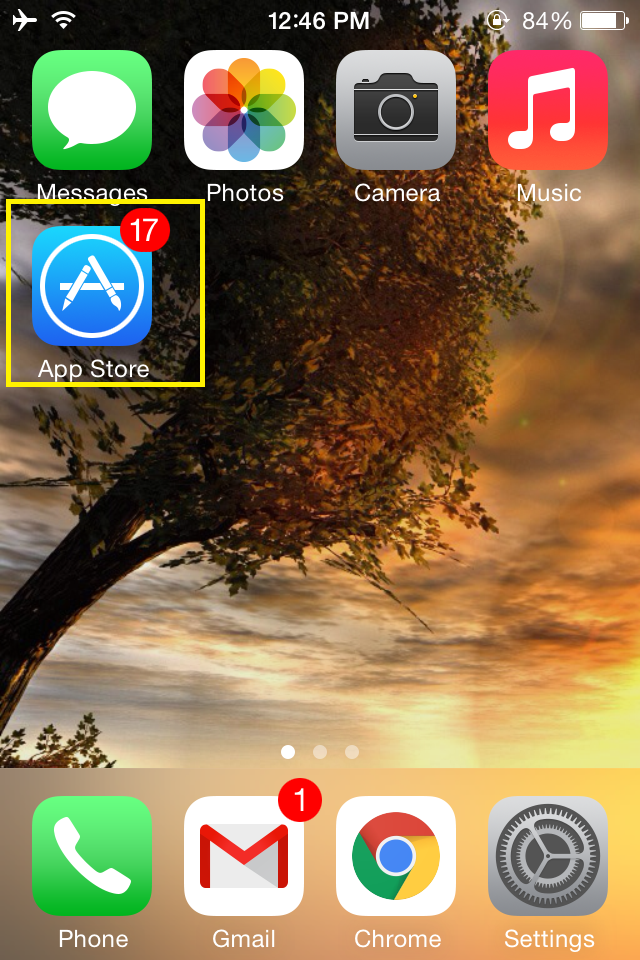
The OpenVPN software is available for download and installation through the App Store on iTunes
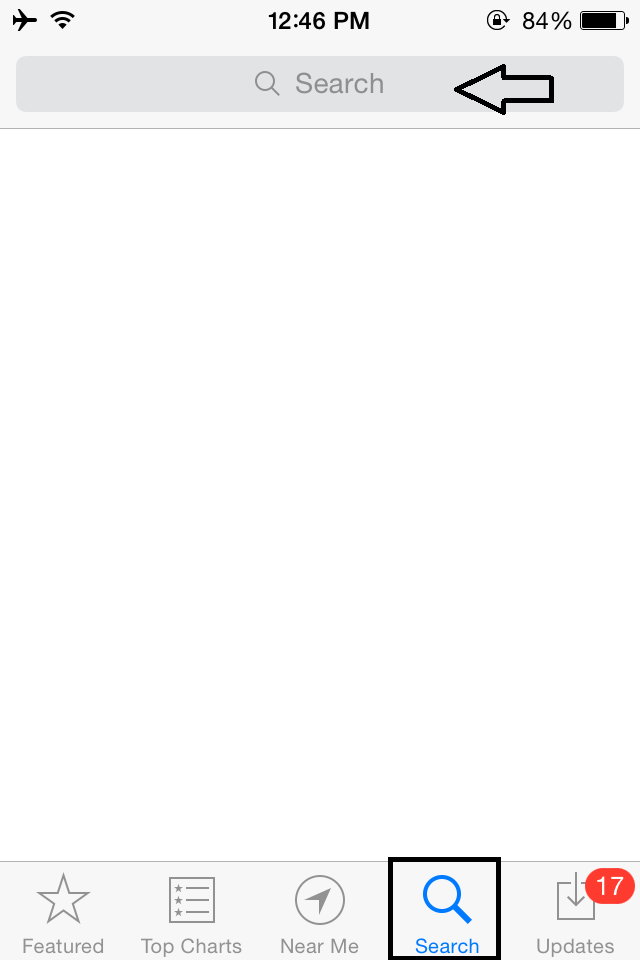
Go to “Search” section
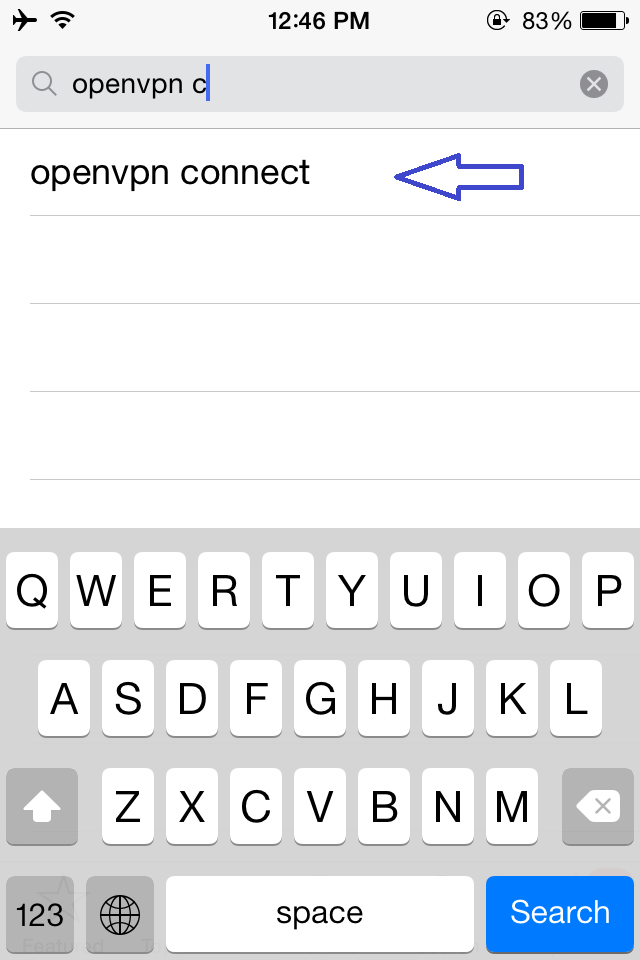
To find OpenVPN software, open the iTunes App Store on your device and search using keywords: “openvpn connnect”
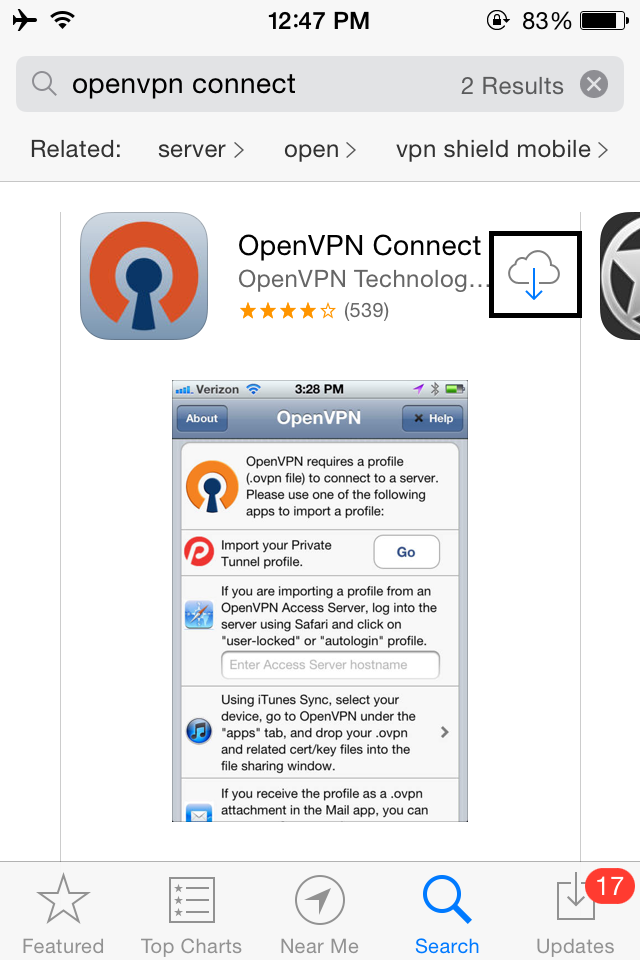
Click on the marked section and then ‘Install’ to download the app.
After install OpenVPN software you need openvpn profile
You must download configuration file ( zip format )
After download configuration file you must extract zip file ( you see tcp and udp configuration file )
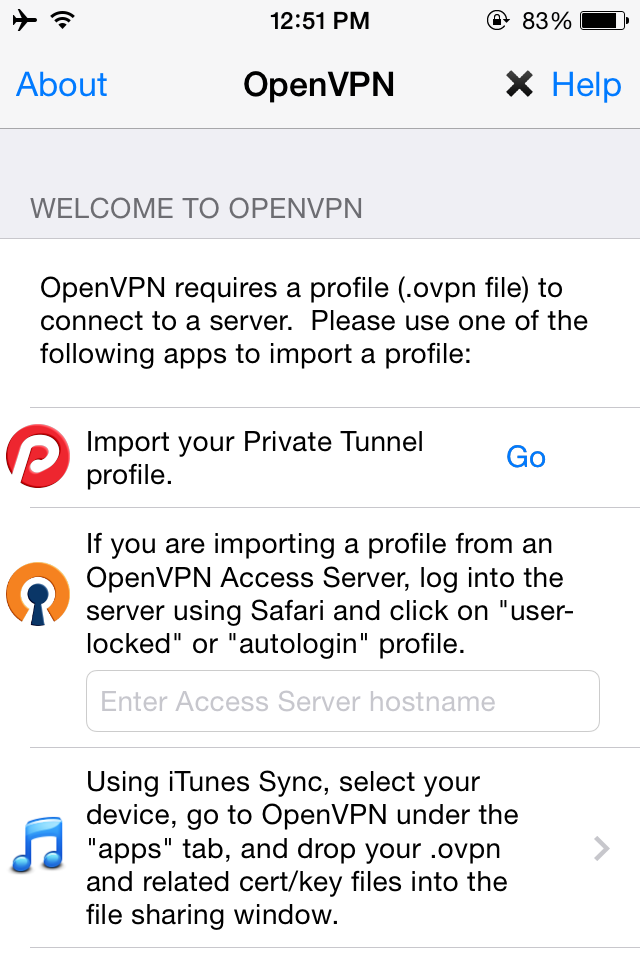
Send EMail .ovpn file to yourself,
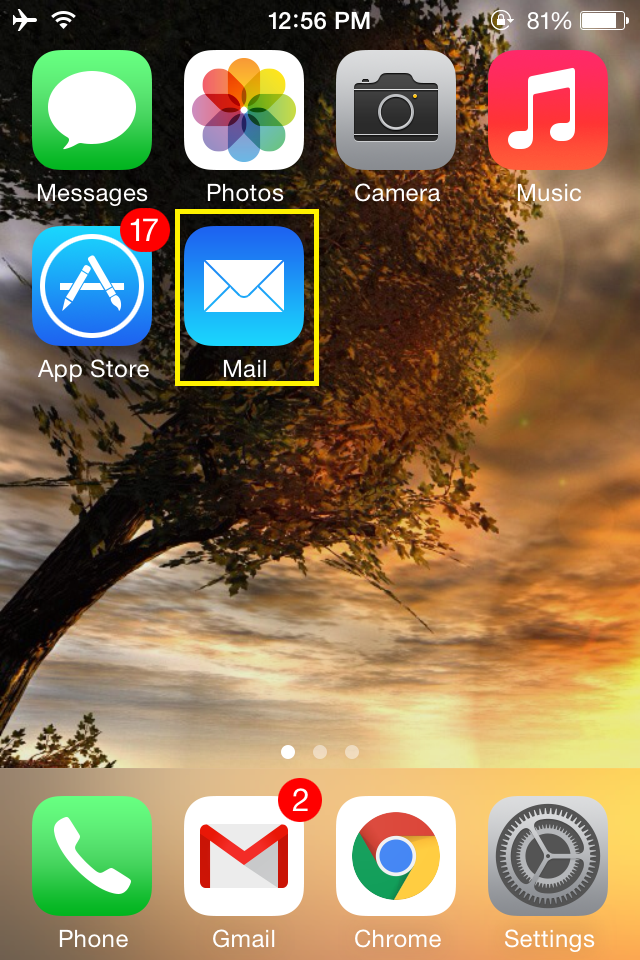
Open the email in Mail
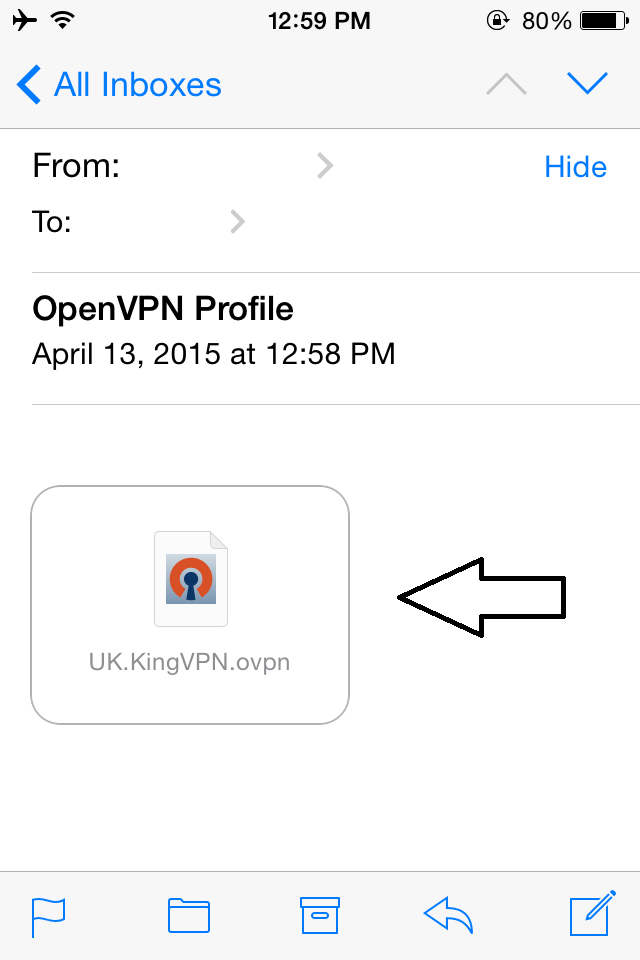
Tap on the attachment
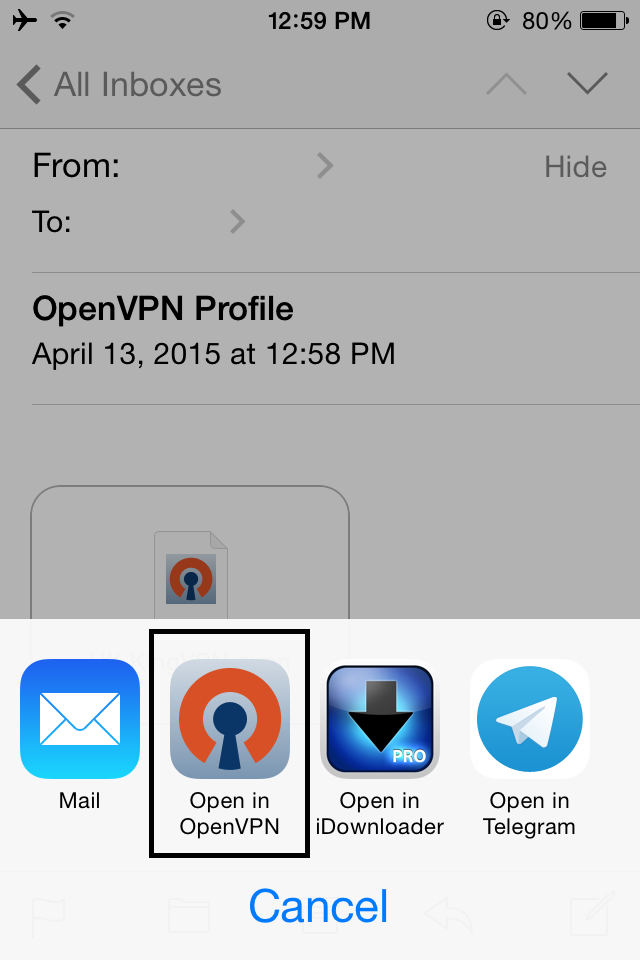
Select Open in OpenVPN
Tap the + button under ‘New OpenVPN profiles are available for import
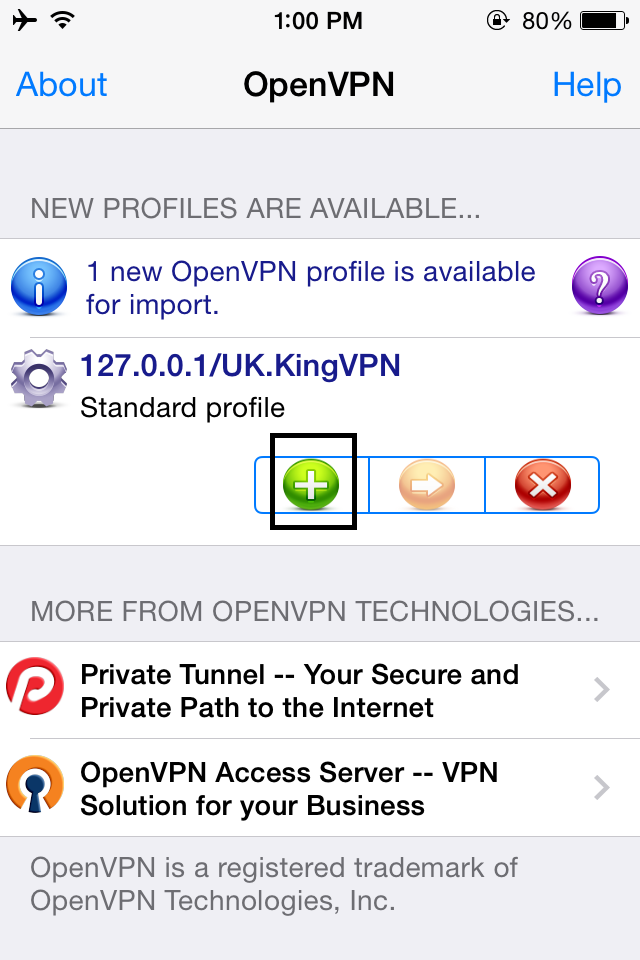
Profile has been imported
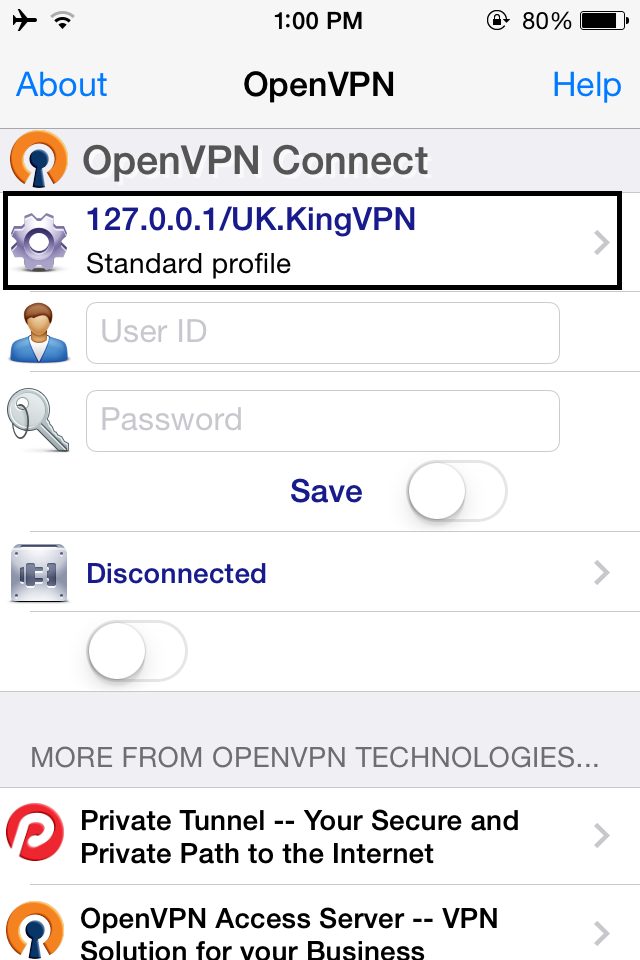
IF you want use OpenVPN on TCP Protocol you must set proxy setting
But, if you want use UDP you don’t need proxy setting and proxy must be turn off
for setup proxy setting go to “Setting”, then find OpenVPN
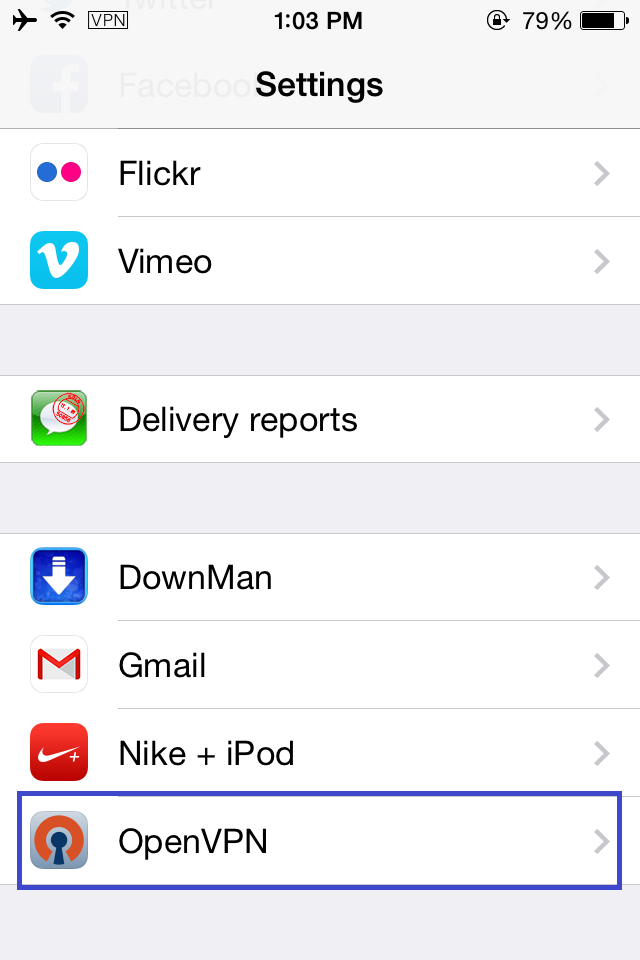
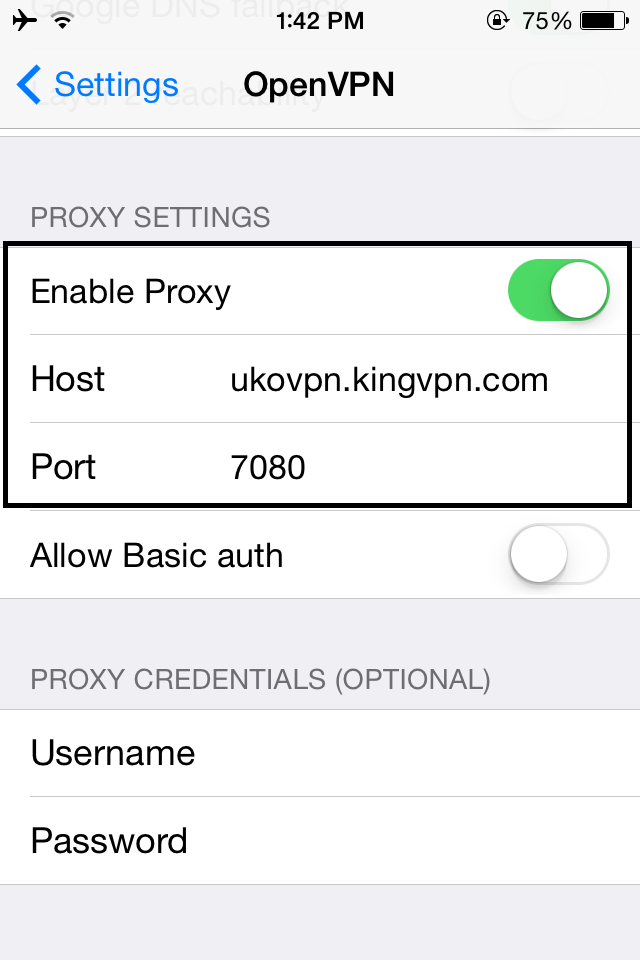
Enable Proxy: must be “ON“
in Host section you must input OpenVPN server address
Server addresses listed in below of this page
In Port section input “7080“
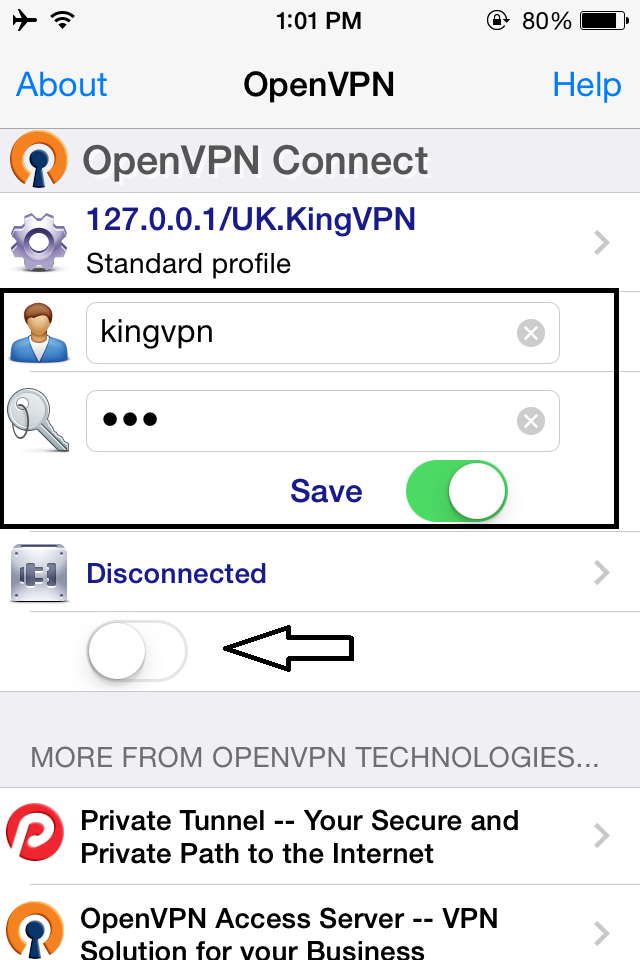
Now get back to OpenVPN and input account information and Switch it ON
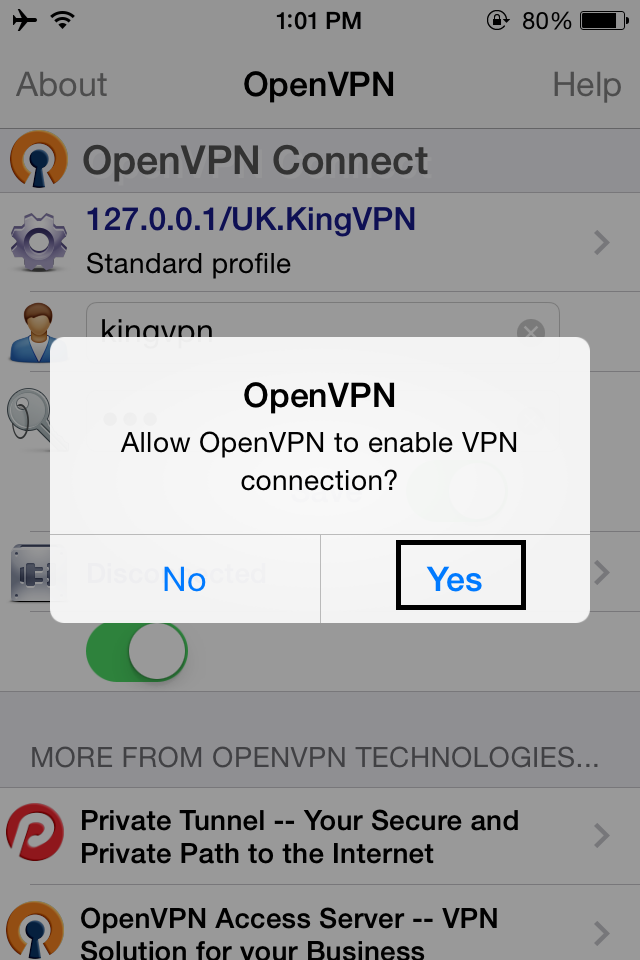
If you get this warning please touch “Yes”
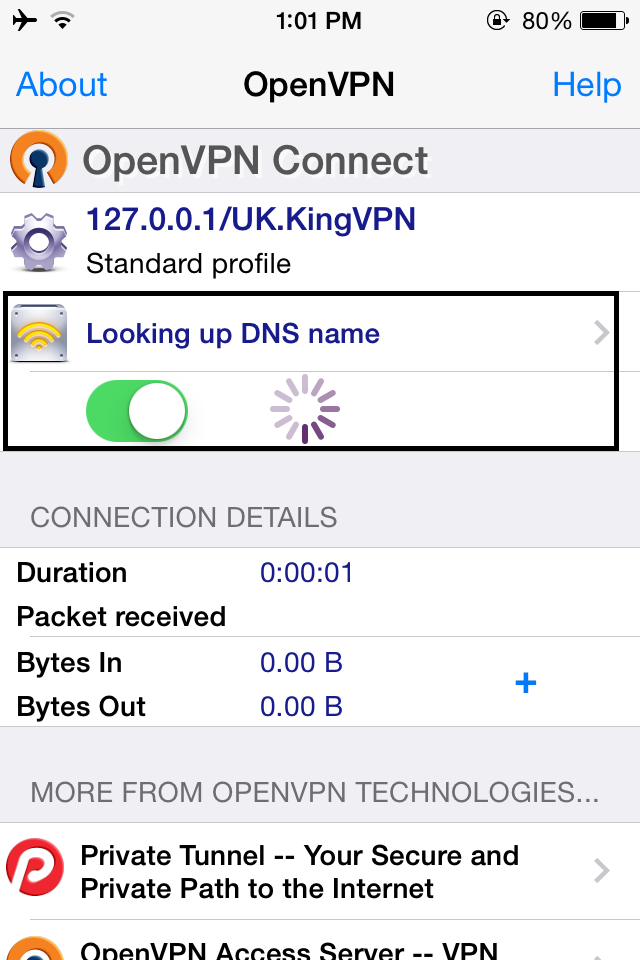
It starts connecting
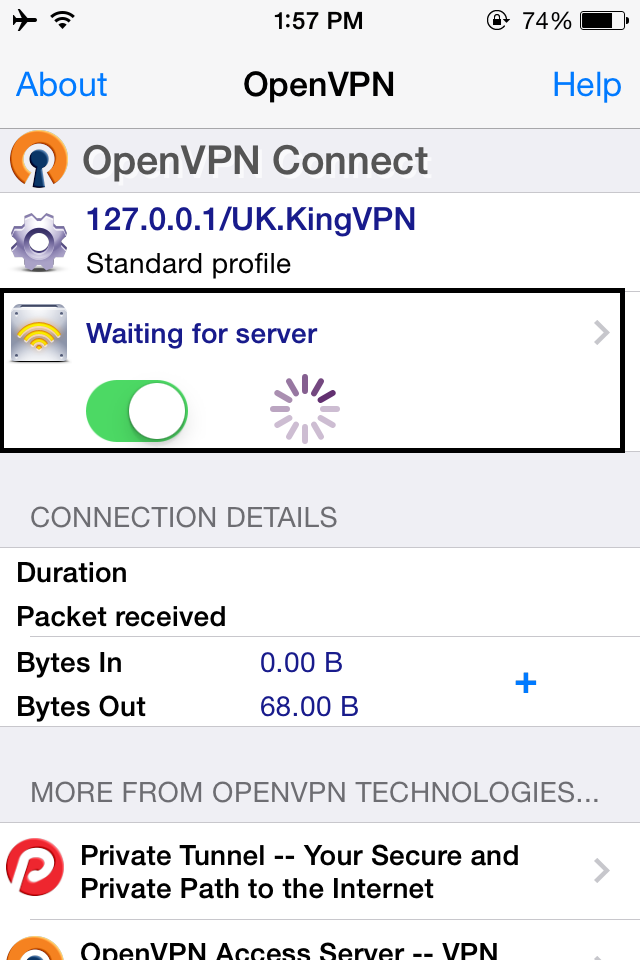
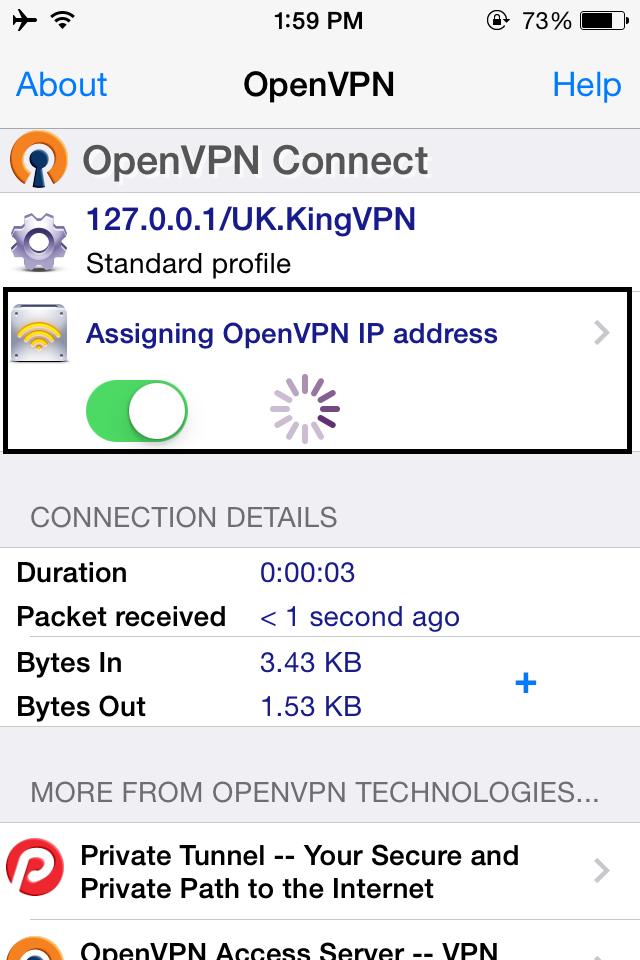
process is complete, You have now successfully been connected to the our OpenVPN server.
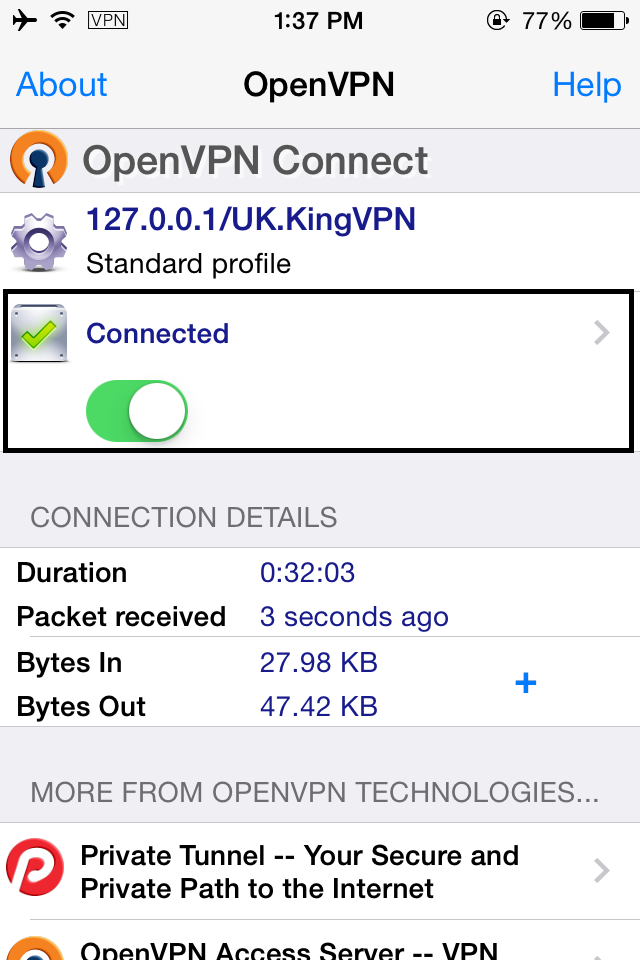
You can see servers address here